
White Text Not Printing? How to Check Overprint and Your PDF
White text can disappear because of overprint, masking, or output settings. Follow a focused check of the source object, exported PDF, and intended printing process.
 Written by HiveGlyph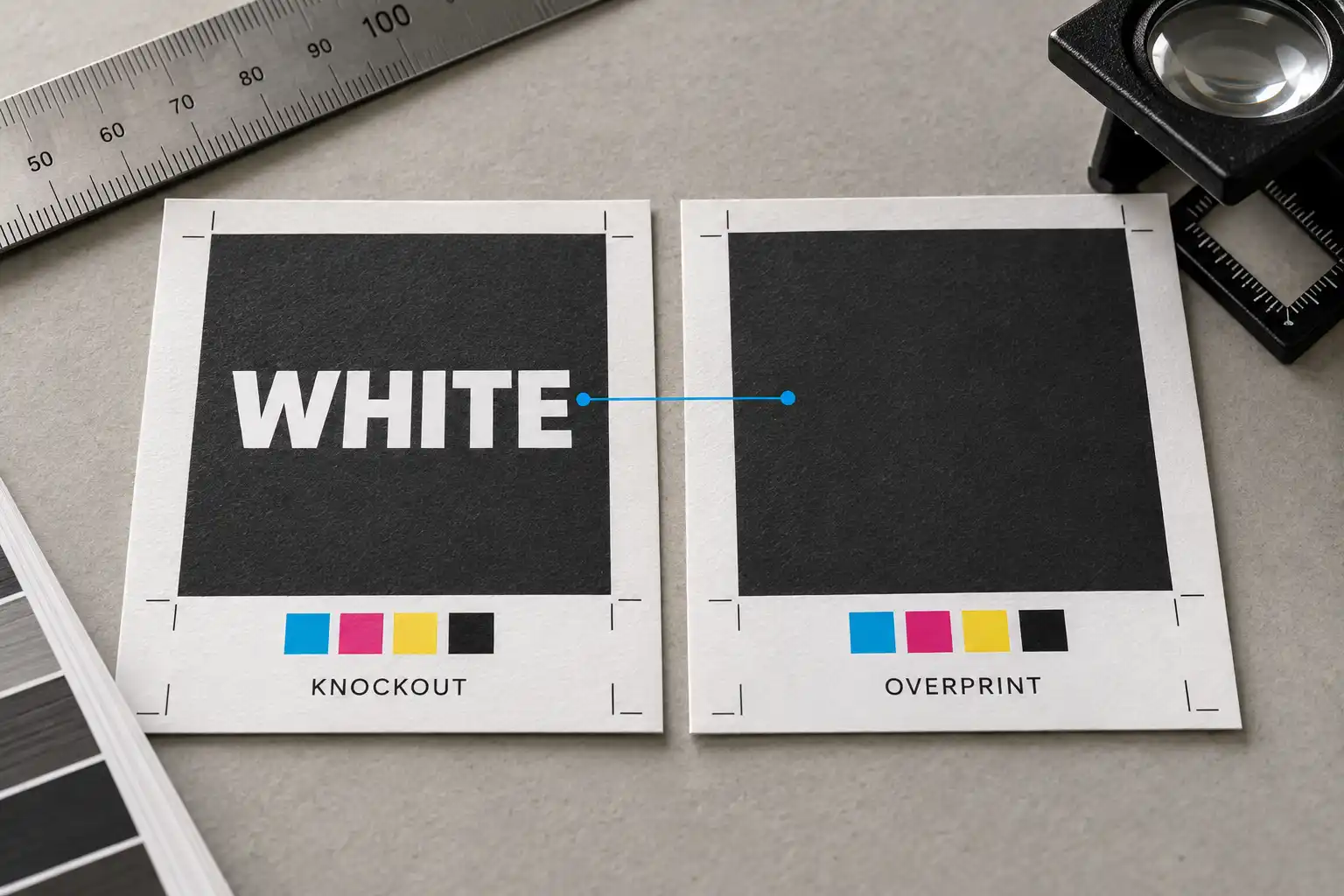
The white headline is visible on the artboard. The dark background prints, but part of the headline disappears. Moving the text to the front feels like the obvious fix, yet another export produces the same result.
A January 2018 question on Graphic Design Stack Exchange describes that frustration with several white text boxes. The author said the suggested overprint check did not resolve the problem, and the thread does not establish a final cause. It is a useful reminder to diagnose the file rather than assume every missing white object has the same explanation.
If you are troubleshooting white text not printing, start with the meaning of white in the job, then inspect the object and the exported PDF. This guide focuses on ordinary white type over a printed background, with a separate check for jobs that use an actual white ink.
The featured image is an existing illustrative business-card mockup. It is not a press proof or evidence of overprint settings, ink, or foil production.
Decide what is supposed to make the letters white
In a conventional CMYK job on white paper, process white represents no process ink. White lettering is usually created by leaving the paper unprinted in the shape of the letters. The dark background must have the corresponding openings.
Overprinting preserves underlying ink instead of knocking it out. If an ordinary process-white object is instructed to overprint, it contributes no ink while allowing the background to remain. The letters can therefore disappear in output that honours that instruction. Adobe documents unintended white overprint as a production problem in its Illustrator white-overprint guidance.
White ink on a transparent label or dark material is a different production requirement. Do not assume a white-looking swatch creates an ink separation. Ask the printer how that ink must be named, separated, and handled in this job. Keep those instructions with the artwork.
Inspect the specific object before changing the whole document
Save a working copy and select one affected text object. Establish whether it uses a process colour or a spot colour, and check its fill and stroke separately. A white outline around a coloured letter is a different object property from a white fill.
In Illustrator, the Attributes panel contains Overprint Fill and Overprint Stroke. Adobe’s overprinting guide describes these controls and recommends View > Overprint Preview to approximate the result. For ordinary process-white lettering intended to reveal the paper, remove unintended overprint from the affected fill or stroke and compare again.
Keep the correction narrow. Turning off every overprint setting in the document can change intentional production choices elsewhere. A small black object, a special ink, and a white headline do not necessarily need the same treatment.
Record what changed. “Removed Overprint Fill from the white headline on page two” gives the printer and your future self something concrete to check. “Fixed the PDF” does not explain which object was repaired or why.
Check how the unwanted setting arrived
Adobe identifies two ways white objects can inherit overprint. An object already set to overprint may be recoloured white, or a newly created object may inherit attributes from a previously selected one. This matters when a design is adapted from a dark logo to a reversed version.
Imagine a hypothetical café card that originally uses a black wordmark on a pale background. The next version uses white lettering on a dark panel. Changing the fill colour is only one part of that revision. Check the production attributes of the recoloured wordmark before treating it as a finished reversed version.
Illustrator also provides a white-overprint suppression option for output. Adobe notes that this does not alter the source artwork and does not affect spot-white objects. A PDF that happens to survive one export setting is therefore not proof that the underlying object has been corrected. Inspect both stages.
Reopen the exact PDF you intend to deliver
Export a clearly named revision, then open that saved file. Do not rely on a screenshot of the artboard or a PDF left open from an earlier export. Confirm the filename and page before comparing anything.
In Acrobat Pro, Adobe documents Output Preview under the print-production tools. Simulate Overprinting helps reveal how overlapping inks are handled. Separations and Object Inspector provide additional information about the exported objects. Use the production profile and settings agreed with the printer where applicable.
For process-white lettering, examine whether the background separations leave the intended openings. For a job using white ink, inspect the requested spot separation instead. These are different checks, even when the composite artwork looks similar.
If you do not have a separation-aware PDF inspection tool, ask the printer to check the exported file. A browser thumbnail or an ordinary office print is insufficient evidence for approving overprint behaviour. State which checks you have completed and which still need confirmation.
Use a small comparison to isolate the problem
The following is a diagnostic exercise to run on a duplicate file, not a report of a test performed on your artwork. Its purpose is to limit the number of variables you change.
- Create a separate test page with a plain dark rectangle and a short line of ordinary process-white text.
- Keep the text fill set to knock out, then export with the same settings as the problem job.
- Inspect that PDF with overprint simulation enabled.
- Place a copy of the affected original text beside the fresh text, preserving its original attributes.
- Compare the two objects and their settings. Change one relevant property at a time.
- After a correction, export a new revision and reopen it before judging the result.
If the simple test works while the original object fails, investigate what differs between them. If both work locally but the printer reports missing text, compare the exact delivered file and the output workflow together. Do not rebuild the whole layout before establishing where the failure begins.
When overprint is already off
Continue the investigation rather than repeatedly toggling the same checkbox. Check whether the text is clipped, hidden by another object, inside an opacity mask, or on a layer excluded from output. Inspect the selected object as well as the group containing it.
A useful isolation method is to copy the affected artwork into a separate diagnostic document and simplify its surroundings gradually. Preserve an untouched master so you can restore anything removed. If removing a mask makes the text visible, that is evidence about the mask relationship. It does not prove the entire export system is broken.
| Observation | Next check |
|---|---|
| Process-white text disappears when overprint is simulated | Inspect unintended overprint on its fill and stroke |
| Text is absent even with overprint disabled | Inspect masks, stacking, visibility, and output settings |
| The PDF is correct but the printed result differs | Compare the delivered revision and output interpretation with the printer |
| A white-ink job has no expected white separation | Confirm spot-colour setup against the printer’s specification |
Avoid outlining all text as your first response. Keep an editable master and test any outlined copy separately. Converting a text object into paths does not, by itself, establish that the production attributes are correct. Our guide to checking editable design files before handoff explains why source and delivery versions need distinct roles.
Approve the corrected file with the printer
Send the corrected PDF with a short note identifying the affected page, object, change, and expected result. For the hypothetical café card, that note could say that the headline should reveal the white paper through the dark panel. A white-ink label needs a different note identifying the intended ink and its agreed handling.
For small reversed type, also ask whether the chosen size and weight suit the printing process. The disappearance of an entire object and the loss of fine detail are different problems. Once the object prints, its counters and strokes still need to survive at the final size. Our actual-size typography proofing guide covers that separate review.
Adobe cautions that on-screen separation previews do not reproduce every press condition, including trapping and halftone behaviour. Use the printer’s appropriate proof for approval. Keep the approved PDF and production notes together so the next revision begins from a known file, rather than another round of guessing.