How to Build Accessible Brand Colors Without Losing the Identity
 Written by HiveGlyph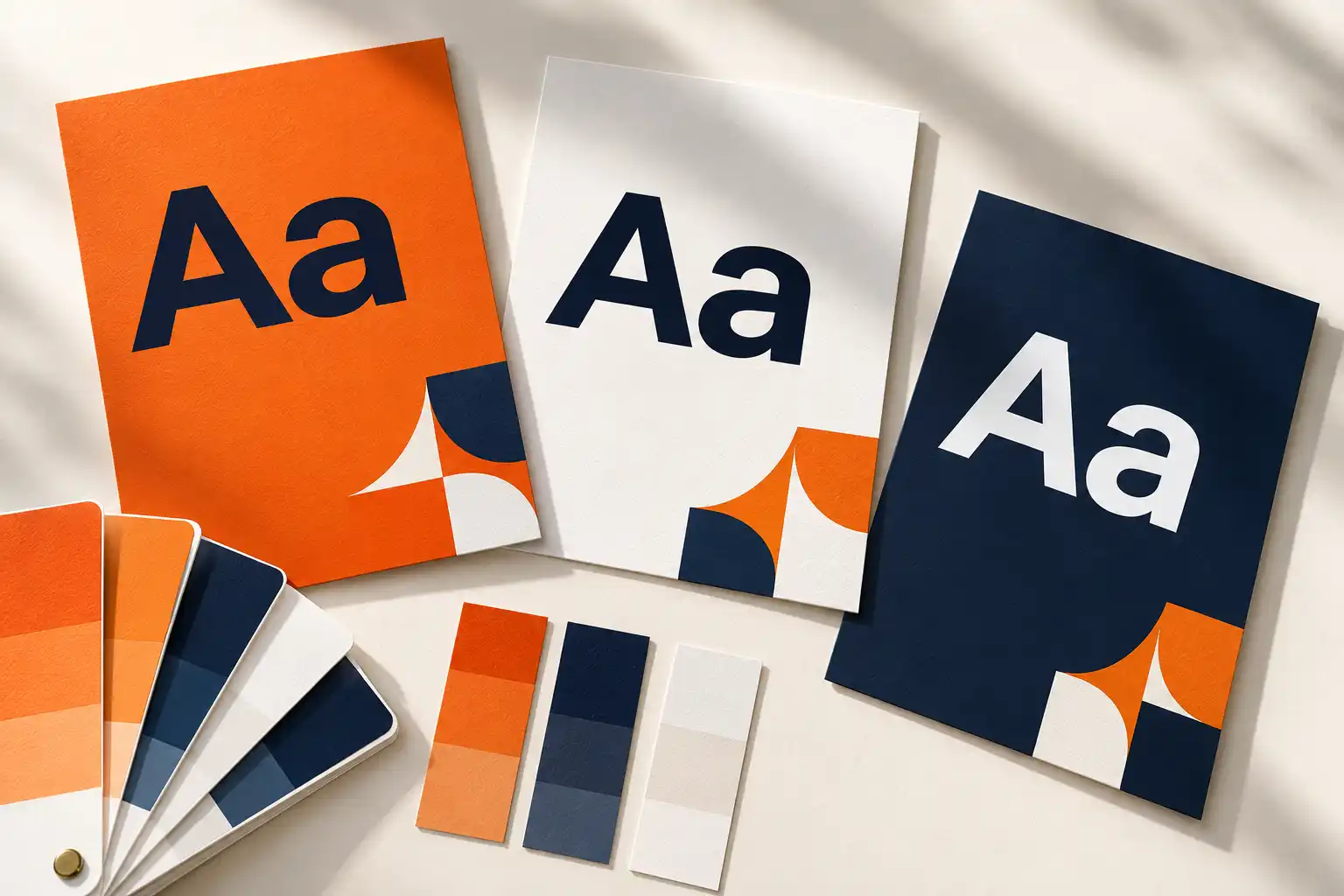
Your brand orange looks confident on the mood board. Put a small white label on it, and the label becomes the weakest part of the design. Darkening the orange might solve one combination while making the identity feel unfamiliar. Before changing the palette, check whether the problem belongs to the color itself or to the role you have assigned it.
A designer’s question on UX Stack Exchange, posted on 21 March 2023, describes this exact tension. Their company used dark blue and orange, but a darker orange felt too rusty. That is a real project obstacle, not evidence that orange is universally unsuitable. Accessible brand colors need a set of usable combinations and clear restrictions.
The method below helps you decide which pairs can carry text, where the original accent can stay, and what to document for the next designer. It focuses on digital artwork and web text. A contrast calculation is one check, not a complete accessibility audit.
Give each color a job before changing its value
Open a real layout and list where the accent appears. A decorative corner, a price, a button background, and a warning symbol ask different things of the same orange. Mark the exact foreground and background for each use. “Orange fails” is too vague to guide a revision. “White 16px text on this orange fails the normal-text threshold” tells you what needs attention.
Separate identity colors from functional combinations in the brand guide. The original orange can remain the campaign accent while a dark neutral handles paragraphs. A darker related orange might be approved for links on white. Treat that as an explicit extension of the system, with approval from the brand owner where needed, rather than quietly replacing the master swatch.
This is also a hierarchy decision. If headings, descriptions, buttons, and decorative shapes all compete in the accent color, reassigning the supporting text can bring the page into focus. Our guide to choosing a font family or single style helps map the text roles before you specify their appearance.
Use the right threshold for the actual text
For WCAG 2.2 Level AA, normal text needs at least 4.5:1 contrast against its background. Large text needs at least 3:1. Large means at least 18pt, or 14pt bold, approximately 24 CSS pixels or 18.67 CSS pixels respectively. The W3C explanation of Contrast (Minimum) also makes two useful distinctions. Logo text has an exception, but ordinary brand copy does not. Thin or unusual type can look faint even when its specified colors pass.
A brand-colored product description is still ordinary text. Calling it part of the identity does not extend the logo exception to the whole page. Likewise, a heading style named “Large” in your file tells you nothing about its final displayed size. Check the delivered layout, especially when a social graphic is reduced.
Keep a comfortably readable design as the goal. Enlarging every label merely to qualify for a lower threshold can break the layout and still produce awkward text. First try changing the text color, its background, or its placement.
Compare pairs with a small reproducible example
Here is a hypothetical orange-and-navy palette. The values below were calculated for opaque, solid sRGB colors using the relative-luminance formula in W3C technique G18. They are calculations, not reader-test results or measurements of the featured image. Ratios are displayed to two decimals, while pass decisions use the unrounded values.
| Text | Background | Contrast | Normal-text decision |
|---|---|---|---|
| White #FFFFFF | Orange #F76300 | 3.12:1 | Below 4.5:1 |
| Navy #172B4D | Orange #F76300 | 4.53:1 | Passes, with little margin |
| Navy #172B4D | White #FFFFFF | 14.10:1 | Passes |
| Dark orange #B84400 | White #FFFFFF | 5.43:1 | Passes |
For a fictional event campaign, keep the bright orange panel and try navy for its short label. Use navy on white for the schedule and booking details. If an orange text link is important to the identity, evaluate the darker orange as a separate approved text color.
The navy-on-orange combination is close to the threshold. That makes it a poor candidate for casual opacity adjustments or substitutions with a lighter navy. You might prefer a darker text color with more margin after reviewing the complete composition. Record that decision instead of leaving colleagues to assume that any navy will work.
To reproduce the calculation, enter each exact hex pair in a contrast checker that reports WCAG ratios. Confirm that both colors are fully opaque. Record the values, ratio, intended text size, and result. Recheck whenever one member of the pair changes. A palette of individually attractive swatches does not establish which combinations work together.
Protect the pair when backgrounds change
A tested pair can disappear during adaptation. Someone fades the text to make it quieter, swaps a white background for a photograph, or places the same label over a gradient. The original result no longer describes that composition.
For text over photography, inspect the area immediately behind the letters. A dark corner elsewhere in the picture is irrelevant. W3C’s G18 technique discusses adjusting the background around text when luminance varies. A solid panel is often the easiest treatment to maintain across changing campaign images.
Decide whether that panel is part of the template. If it is optional, supply an alternative placement that still works. “Move the headline until it looks fine” leaves too much to chance when a production team is creating many crops. Include a difficult image in the template review, such as a scene containing both pale and dark areas.
The featured poster is an existing illustrative mockup with yellow-green lettering on black. Its lighting and texture are not evidence of a measured contrast result. Use the numerical example above for the reproducible comparison.
Check meaning as well as visibility
Good text contrast will not explain an unlabeled color code. If two product variants are distinguished only by orange and navy dots, someone still has to identify the colors correctly to choose. Add the variant names beside the dots. For a status graphic, include a word such as “Pending” or “Approved” instead of relying entirely on the fill.
This follows the separate WCAG Use of Color criterion, which addresses information conveyed through color alone. A readable palette and an understandable information system are related tasks, but each needs its own review.
For interfaces and explanatory graphics, assess meaningful shapes too. Non-text Contrast specifies 3:1 against adjacent colors for visual information needed to identify active controls and states, and graphical parts needed to understand content, subject to its exceptions. That does not mean every decorative boundary needs 3:1. Ask which mark the reader needs to find or interpret.
Deliver combinations the team can actually reuse
Finish with a compact usage sheet. Show the approved pair alongside a realistic label or paragraph, name its role, and state its limits. For the hypothetical campaign, write “navy body text on white,” “navy label on bright orange,” and “dark-orange underlined link on white.” Include the exact color values rather than color names alone.
Then make one alternative layout with a longer heading and a different photograph. Check the small text and any changed backgrounds. If a pair fails, amend the template or usage rule before distributing it. Our editable design files guide covers a separate handoff check for the changes the recipient must be able to make.
Leave a short change note with the artwork. Identify the original accent, the added text variant, and the combinations that were checked. The next designer should be able to reuse the orange with confidence, without guessing which part of the layout made it readable.